How to Choose a WordPress Accessibility Plugin: Widget, Scanner, or Self-Hosted
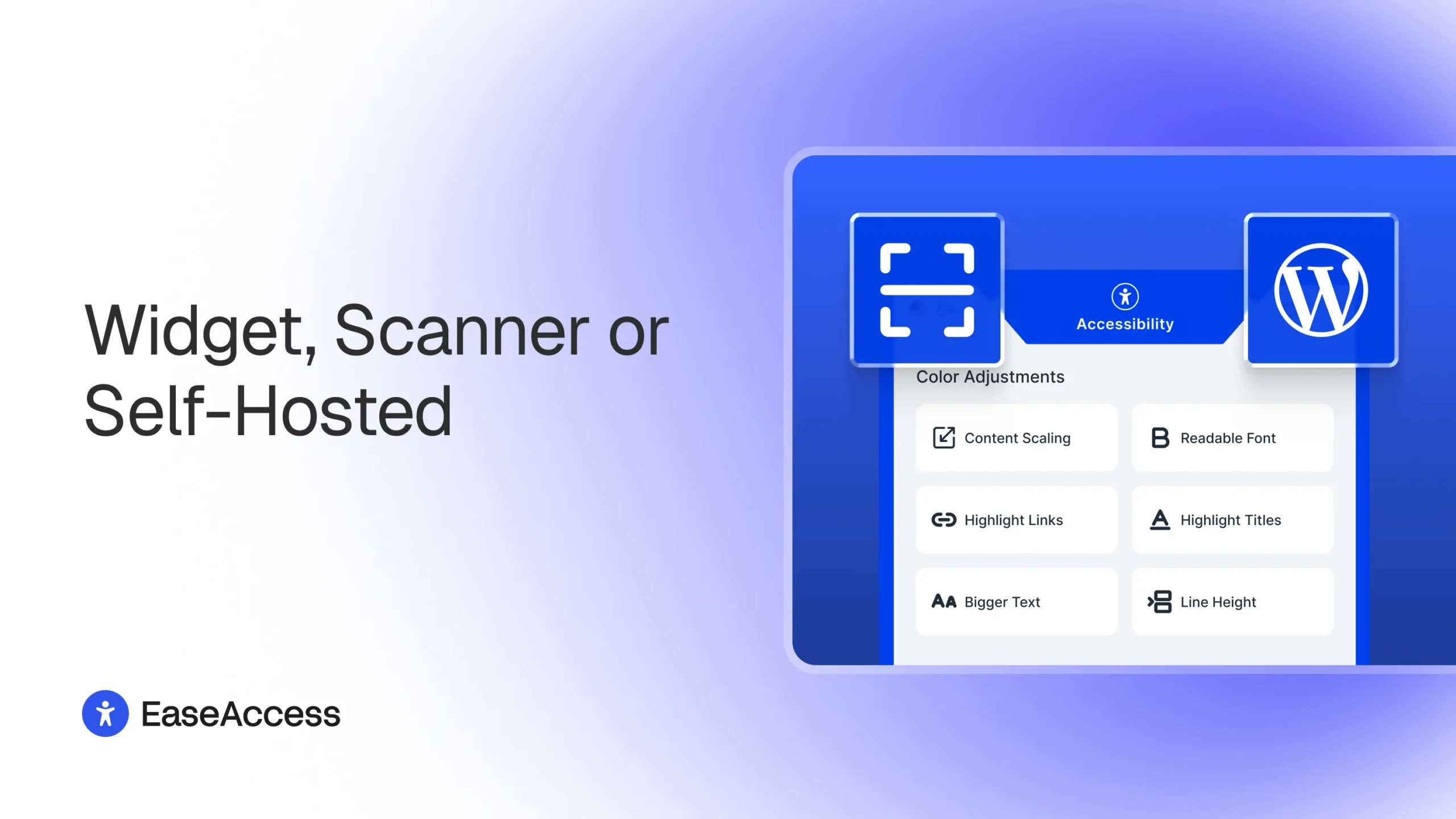
Table of Contents
Table of Contents
Most conversations about web accessibility focus on the site owner: scans, fixes, compliance. But accessibility is ultimately about the person on the other end of the screen, and different people need different things from the same page.
An accessibility profile is a preset bundle of visitor-facing adjustments: text, color, navigation, and motion, activated with a single click instead of dozens of individual settings
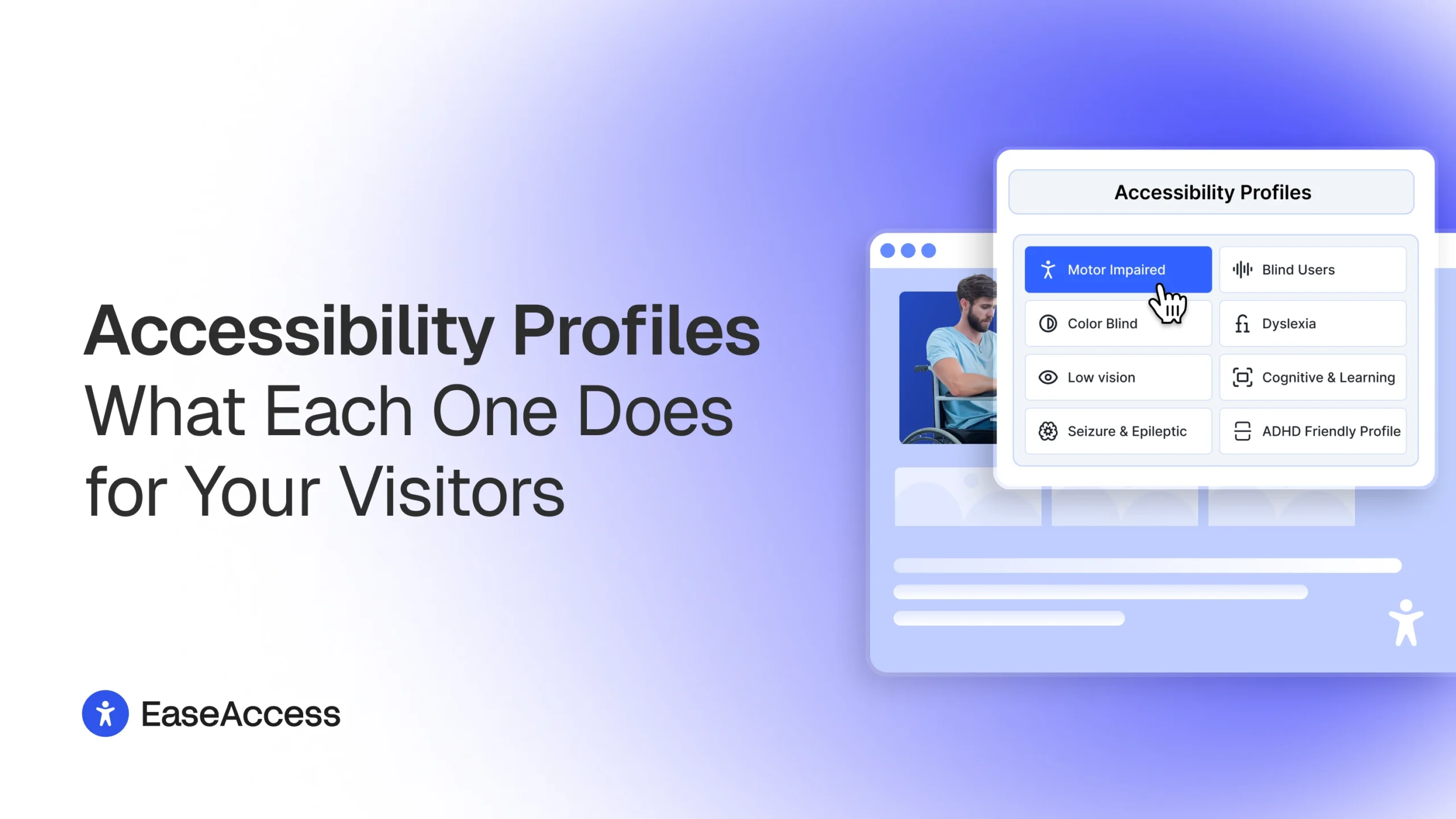
That's what accessibility profiles are for. Instead of asking a visitor to hunt through a dozen individual settings, a profile bundles the right adjustments into one choice. EaseAccess includes eight, each built around a real set of needs.
8 Accessibility Profiles
Motor Impaired: Enlarges clickable areas and supports keyboard-friendly navigation, so people who don't use a mouse, or who find precise clicking difficult, can move through your site with less effort.
Blind Users: Optimizes the page for screen-reader output, prioritizing a clean, logical reading order over visual styling.
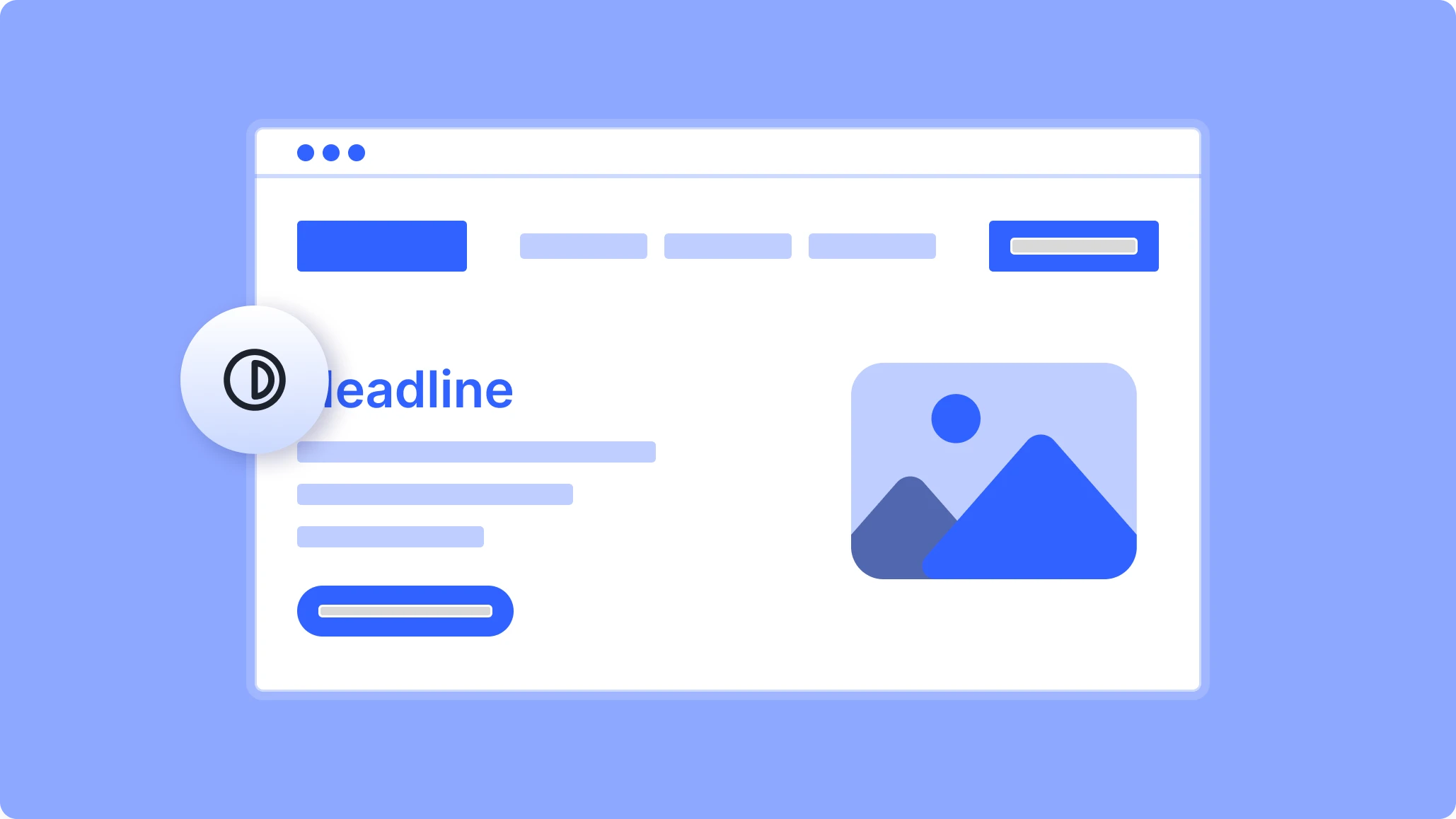
Color Blind: Adjusts color presentation so information that's normally conveyed by color alone stays distinguishable.
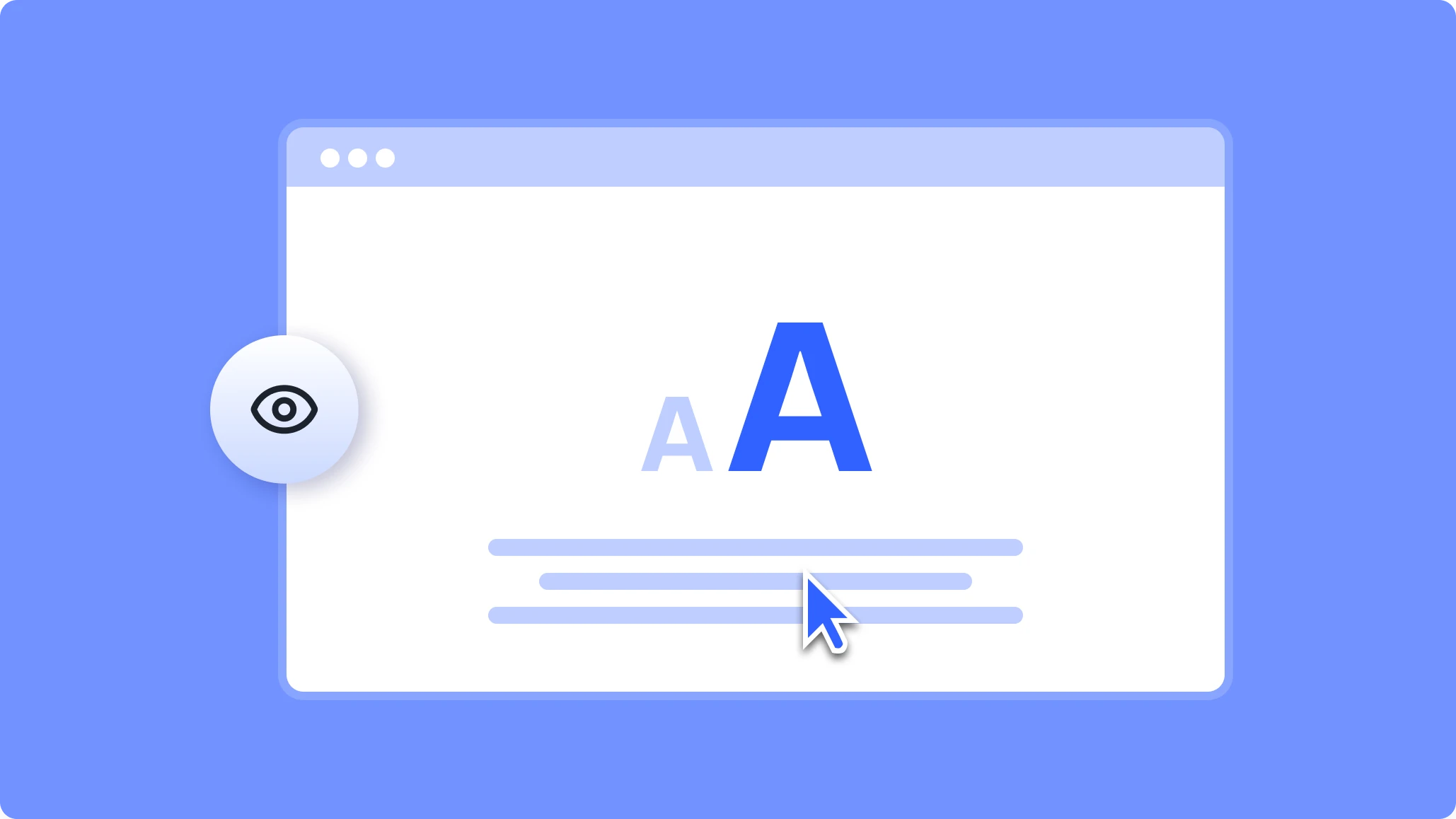
Low Vision: Increases text size, contrast, and cursor visibility for visitors with reduced sight who aren't using a screen reader.
Cognitive Learning: Simplifies the visual field and reduces distractions to help visitors who process information best with fewer things competing for attention.
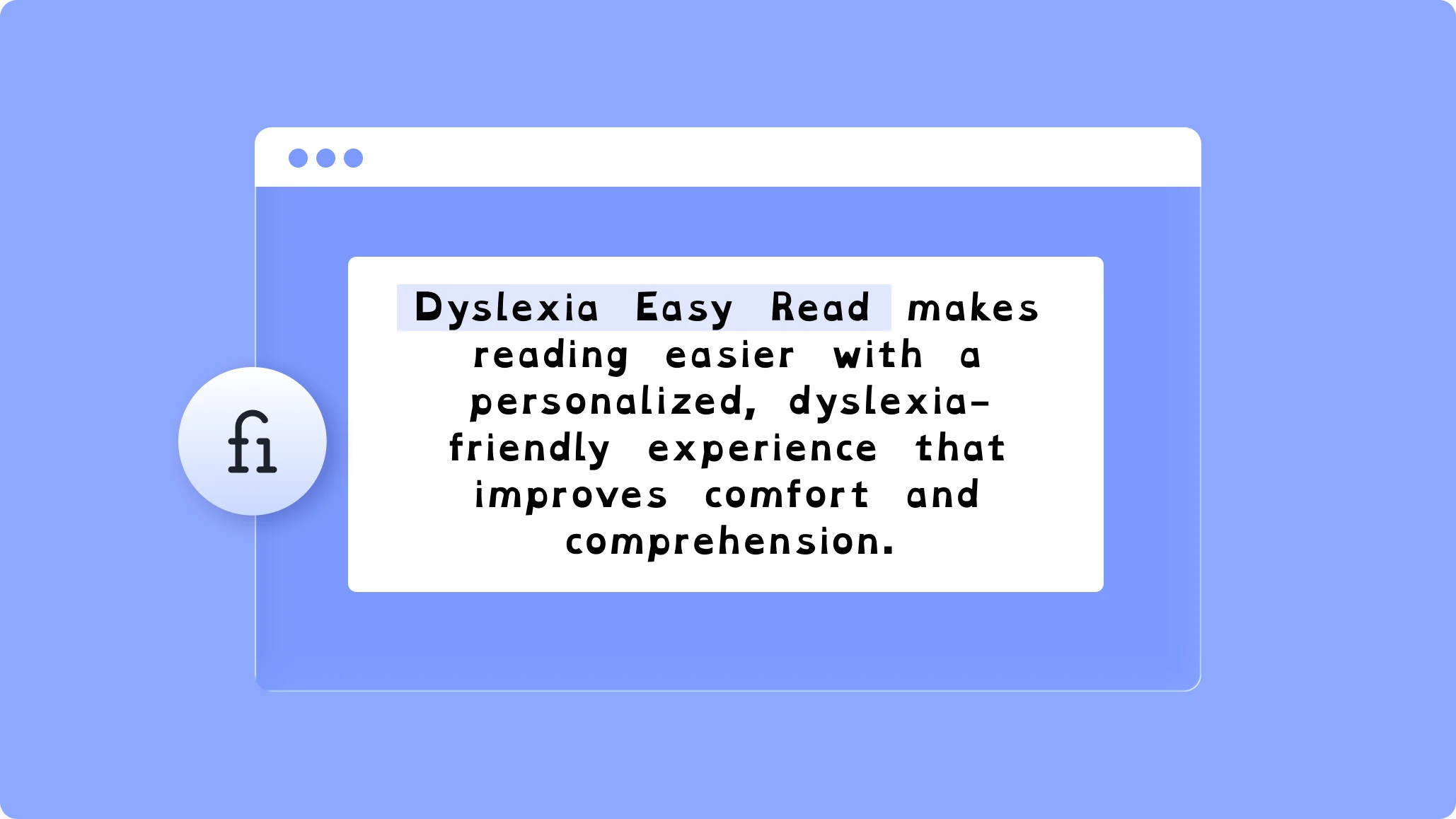
Dyslexia: Switches to a more readable font and adjusts spacing to reduce the visual crowding that makes text harder to process.
Seizure & Epileptic: Pauses animations and reduces motion, lowering the risk for visitors sensitive to flashing or moving content.
ADHD Profile: Combines a reading guide and reduced distractions to help visitors hold focus on one section at a time.
Each accessibility profile targets a distinct need rather than applying one generic fix to everyone.
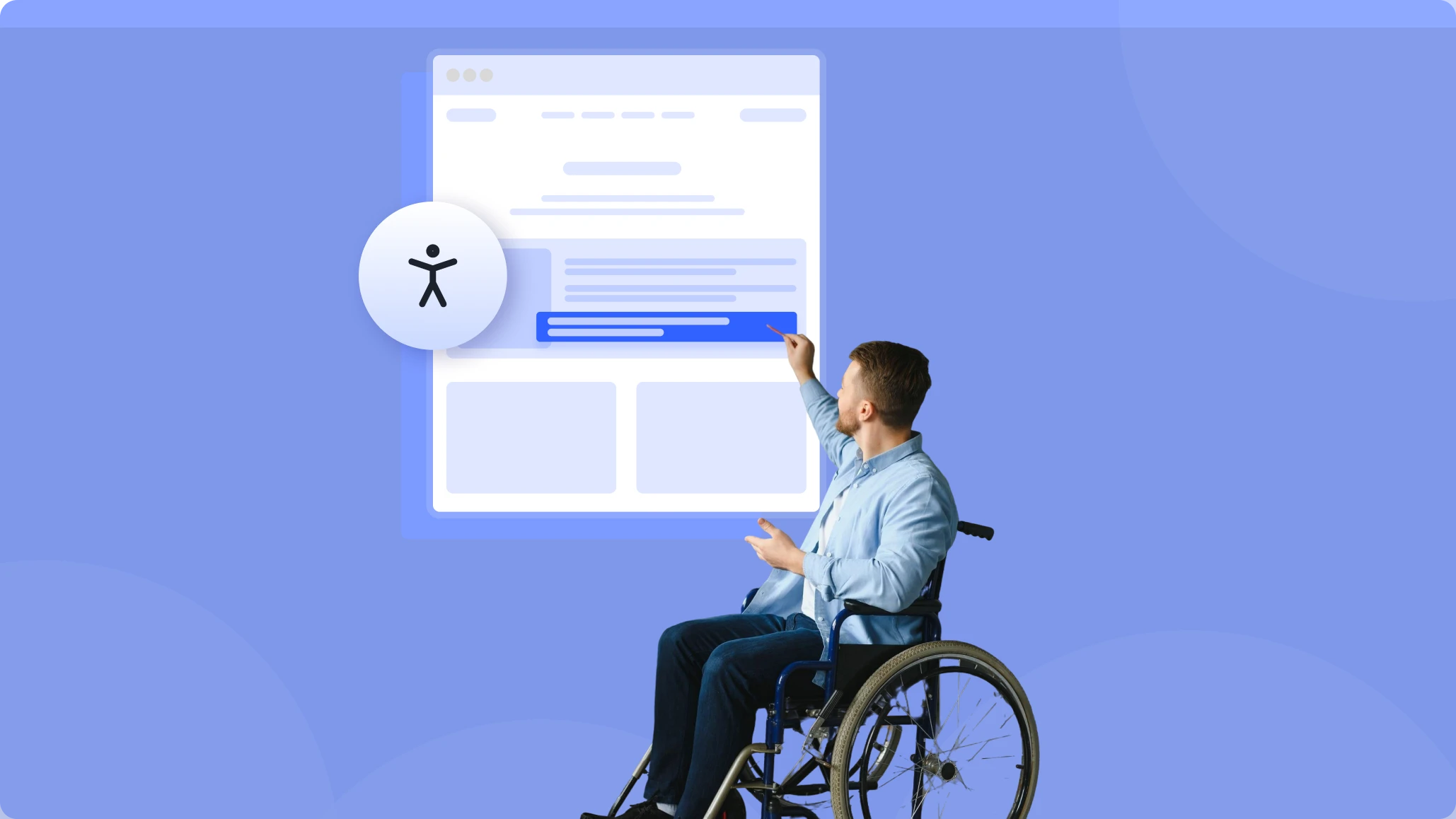
Where an accessibility profile fits and where it doesn't
Profiles are a genuine usability benefit for your visitors. But it's worth being clear about what they are and aren't. They personalize how someone experiences your existing page, they don't rewrite the underlying code, and they aren't a substitute for building an accessible site in the first place.
This is the honest line EaseAccess holds throughout: automated and frontend tools address part of the picture, roughly 30–40% of WCAG issues, and manual review is still recommended for the rest. Profiles make your site friendlier for the people using it today. Fixing the source, with the Scanner and Auto-Fix Engine, is how you keep improving underneath.
How visitors turn on an accessibility profile
Turning on an accessibility profile takes one click inside the EaseAccess widget: no account, no setup.
The profiles live in the EaseAccess widget. A visitor opens it, picks the profile that fits, and the adjustments apply immediately: no account, no setup on their end. They can switch it off or change it just as easily.
For you, it's one component of a larger workflow: check your site, apply supported fixes, publish a statement, and give visitors the controls to tailor the rest.
Explore the EaseAccess widget and all 8 profiles
Frequently asked questions
Q: What is an accessibility profile?
Answer: An accessibility profile is a preset bundle of visitor-facing adjustments- text, color, navigation, or motion changes- grouped around a specific need, like low vision or ADHD. Instead of adjusting a dozen individual settings, a visitor picks one accessibility profile and the relevant changes apply immediately.
Q: How many accessibility profiles does EaseAccess offer?
Answer: EaseAccess includes 8 accessibility profiles: Motor Impaired, Blind Users, Color Blind, Dyslexia, Low Vision, Cognitive Learning, Seizure & Epileptic, and ADHD Profile. Each accessibility profile is built around a distinct set of visitor needs rather than a one-size-fits-all setting.
Q: Do accessibility profiles replace WCAG compliance work?
Answer:No. An accessibility profile personalizes how a visitor experiences your existing page — it doesn't rewrite the underlying code. Profiles support accessibility workflows alongside the Scanner and Auto-Fix Engine, but manual review is still recommended for full WCAG coverage.
Q: How does a visitor turn on an accessibility profile?
Answer: A visitor opens the EaseAccess widget, selects the accessibility profile that fits their needs, and the adjustments apply instantly — no account or setup required. They can switch profiles or turn them off just as easily.
Q: Which accessibility profile should I recommend for dyslexic visitors?
Answer:The Dyslexia accessibility profile switches to a more readable font and adjusts spacing to reduce visual crowding, making text easier to process for visitors with dyslexia.
Stay Tuned For More Updates👇
That’s all for this month’s progress report. Stay tuned for more updates, and don’t forget to follow us by email and subscribe to our YouTube channel to ensure you don’t miss a thing. I’ll return next month with another Divi 5 progress update and a link to the Divi Alpha demo!
Stay Tuned For More Updates👇

EaseAccess is built by a team of developers, writers, designers, and marketers who believe the web should work for everyone. We create accessibility tools for WordPress and share practical content that helps you apply supported corrections, understand WCAG 2.1 guidelines, and design with every visitor in mind.