The General tab contains the master controls for the EaseAccess widget, allowing you to optimize its core performance and behavior. The Preview pane on the right provides a live preview as you make changes.
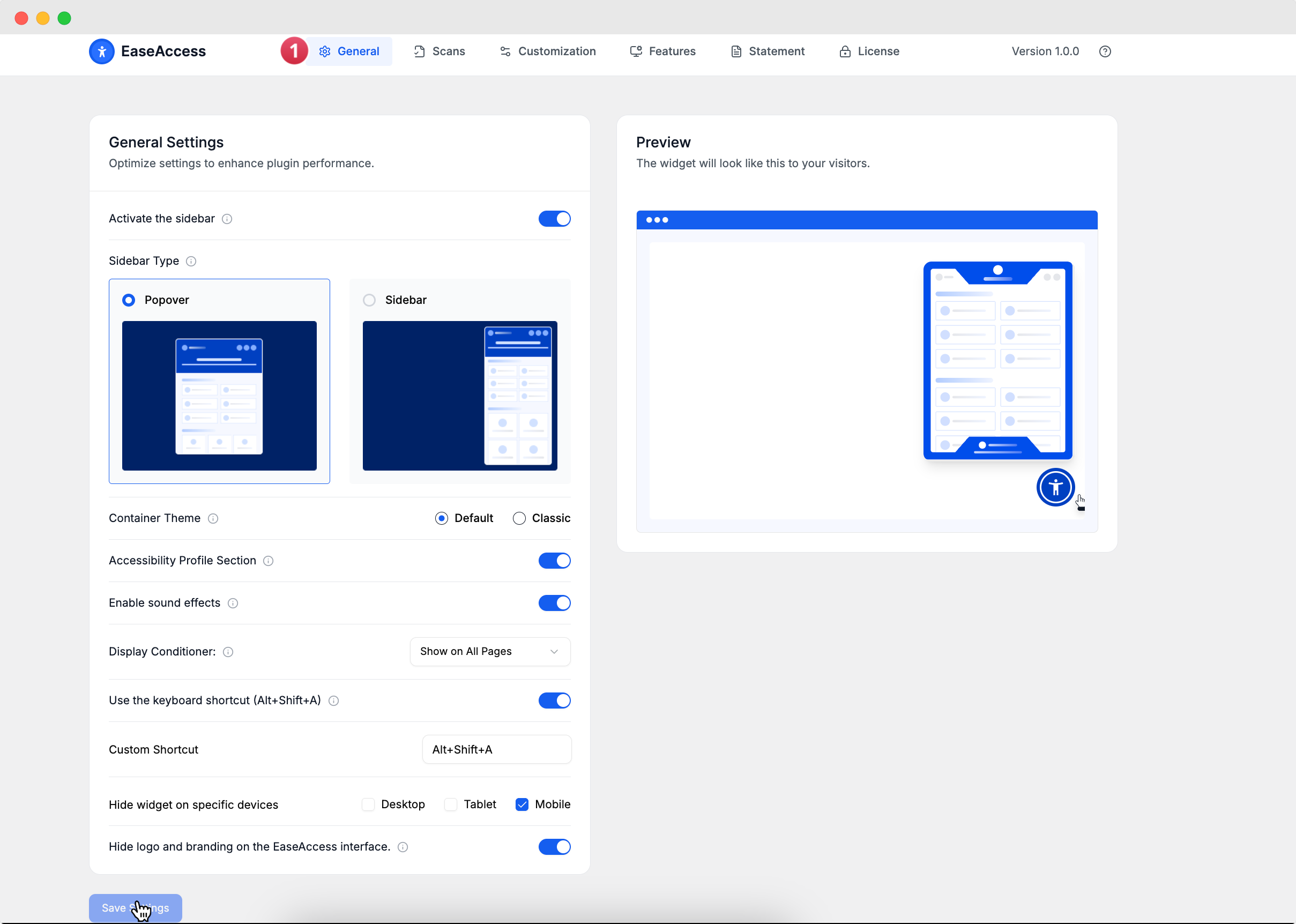
Activate the sidebar: This is the main on/off switch for the entire EaseAccess widget.
- Sidebar Type: Choose the appearance of the accessibility menu. Select Popover for a compact, floating window, or Sidebar for a full-height panel that appears alongside your content.
- Accessibility Profile Section: Enable this to display the one-click Accessibility Profiles (e.g., 'Dyslexia', 'Low Vision') to your users. Disabling this hides the profiles section.
- Enable sound effects: Toggle this on to provide auditory feedback as users interact with the widget.
- Display Conditioner: This setting controls where the widget appears. The default is Show on All Pages.
- Use the keyboard shortcut: Enable this to allow visitors to open the widget with the keyboard command Alt+Shift+A.
- Hide widget on specific devices: Click the icons to hide the widget on Desktop, Tablet, or Mobile screen sizes.
- Hide logo and branding on the EaseAccess interface: Enable this for a white-label experience, removing the EaseAccess logo and branding from the user-facing interface.