The Features tab is your central control panel for customizing the user-facing accessibility widget. Here, you can select which accessibility features and capabilities you want to offer to your website visitors. Each option can be enabled or disabled with a simple toggle, giving you complete control over the tools available.
As you enable or disable features, the Preview pane on the right provides a live, interactive demonstration of how the widget will appear to your users. Features marked with a PRO tag require an active license to be used.
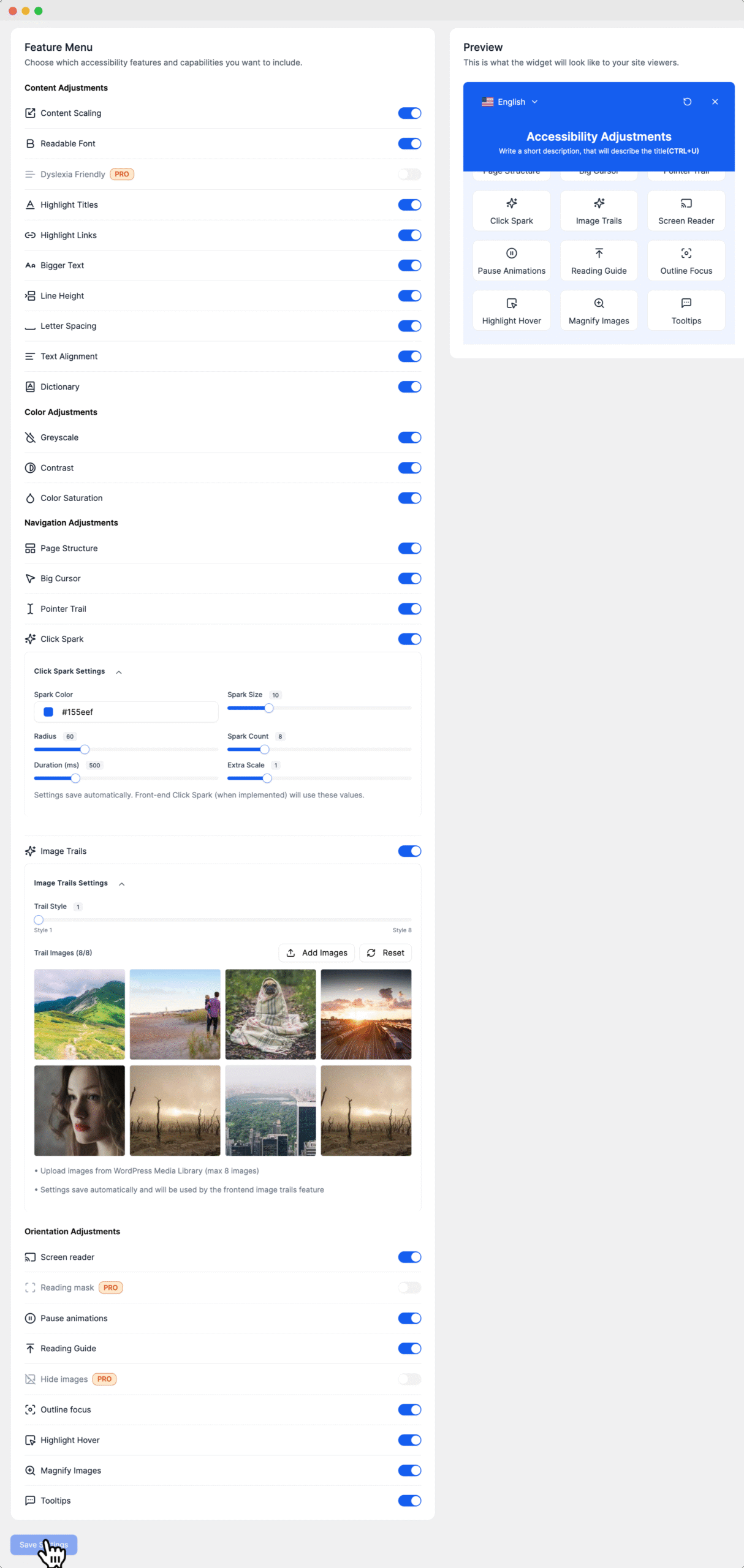
Feature Menu
The menu is organized into four distinct categories of adjustments:
1. Content Adjustments
These tools help users modify the display and readability of the text and content on your site.
Content Scaling: Allows users to globally increase or decrease the size of all elements on the page.
Readable Font (PRO): Converts text into a more readable, dyslexia-friendly font.
Highlight Titles (PRO): Places a distinct visual highlight on all headings (H1, H2, etc.).
Highlight Links: Makes all clickable links more prominent.
Line Height: Adjusts the vertical space between lines of text.
Letter Spacing: Modifies the space between individual letters.
Text Alignment: Allows users to force text to be left, right, center, or justified.
Dictionary: An integrated tool for looking up word definitions.
2. Color Adjustments
These options assist users with visual impairments or color blindness.
Grayscale: Renders the entire page in shades of gray.
Contrast: Applies a high-contrast (dark or light) color scheme to the site.
Color Saturation: Lets users control the intensity of colors on the page.
3. Navigation Adjustments
These features improve the ease with which users can navigate and interact with your website.
Page Structure: Creates a clickable, structured map of the page based on headings and landmarks for quick navigation.
Big Cursor: Enlarges the mouse cursor for better visibility.
Pointer Trail: Adds a decorative trail that follows the user's mouse cursor, making it easier to track on screen.
Click Spark: Creates a visual 'spark' or burst effect when the user clicks their mouse. You can customize the Spark Color, Size, Radius, Count, and Duration of the effect.
Image Trails: Creates a trail of custom images that follow the mouse cursor. You can select from different Trail Styles and upload up to 8 of your own images.
4. Orientation Adjustments
These tools help users who are sensitive to motion or require different ways to focus on content.
Screen reader: A built-in text-to-speech reader for on-screen content.
Reading mask (PRO): Creates a focused reading bar that follows the cursor, hiding the rest of the screen.
Pause animations: Stops all animations, GIFs, and moving background elements.
Reading Guide: Adds a horizontal line that follows the cursor to aid in reading lines of text.
Hide images (PRO): Replaces all images on the page with their descriptive alt-text.
Highlight links: (This is a more prominent visual highlight for navigation).
Highlight Hover: Visually emphasizes elements as the user hovers over them with the mouse.
Magnify Images: Allows users to zoom in on images.
Tooltips: Displays text from title and ARIA attributes in a visible tooltip.
After you have configured the features to your liking, click the Save Settings button at the bottom to apply your changes.