Accessibility Statement Management
This section of the EaseAccess dashboard allows you to generate, manage, and control the visibility of your website's Accessibility Statement. A dedicated accessibility statement is essential for communicating your commitment to web standards and providing a clear path for user feedback.
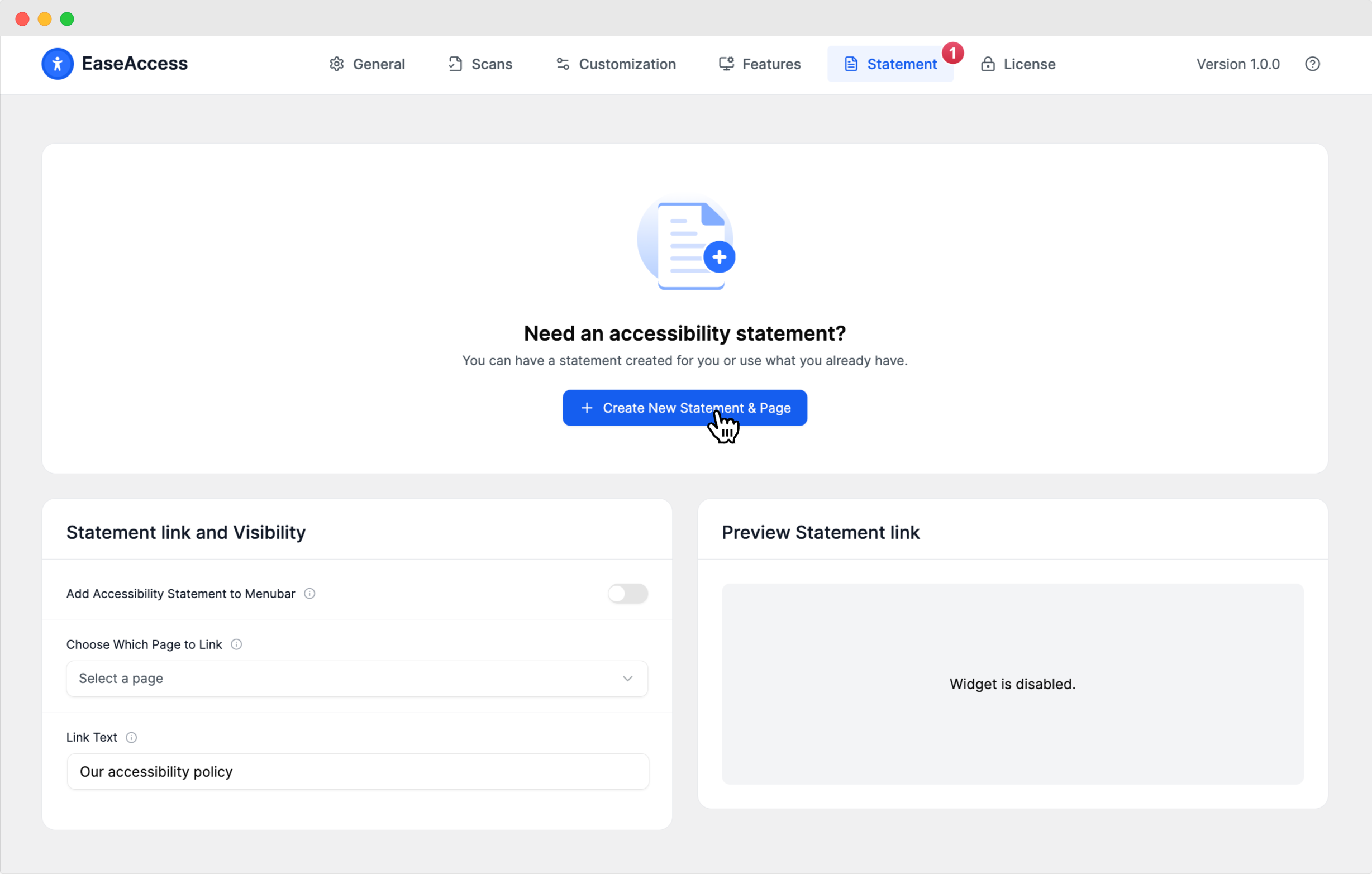
1. Creating Your Statement
The primary function of this page is to ensure your website has a legally compliant and informative accessibility statement.
| Feature | Description |
|---|---|
| Need an accessibility statement? | This section is your starting point for generating content. |
| Create New Statement & Page | Click this button to launch the guided statement creation process. This typically involves answering questions about your website's current accessibility status, conformance level (e.g., WCAG 2.1 AA), and outlining any known issues or exclusions. If you already have a statement, you can also use this tool to import it. |
2. Statement Link and Visibility
Once your statement is created, use these settings to determine where and how the link to the statement will appear to your users.
Add Accessibility Statement to Menubar
Use the toggle switchto control whether the link to your full Accessibility Statement page is automatically injected into your website's primary navigation or footer menu.
ON (Enabled): The link will appear on your site's navigation.
OFF (Disabled): You will need to manually link to the statement page.
Choose Which Page to Link
If you have created multiple versions or drafts of your statement, use the dropdown menu to select the specific page or URL that the link should direct to. If you are using the new page generated by EaseAccess, it will be the default selection.
Link Text
This input field controls the visible text of the link displayed to the user.
Default Text: Our accessibility policy
Customization: You can edit this text to be shorter (e.g., Accessibility) or more formal (e.g., Website Accessibility Conformance Report).
3. Preview Statement Link
The preview area on the right provides immediate feedback on how your link will appear and function, usually within the context of the EaseAccess widget itself.
Widget is disabled: This message indicates that the main EaseAccess Accessibility Widget is currently turned off or not configured. The visibility settings controlled on this page may not take effect until the main widget is active.
Active Preview: Once the widget is enabled, this area will dynamically show how the accessibility statement link appears inside the widget interface.