The Scans tab is a powerful and proactive tool designed to help you identify, understand, and resolve accessibility issues across your entire website. Instead of waiting for users to report problems, you can use the scanner to find and fix issues, ensuring a higher level of compliance with WCAG standards from the start.
The Scans Dashboard
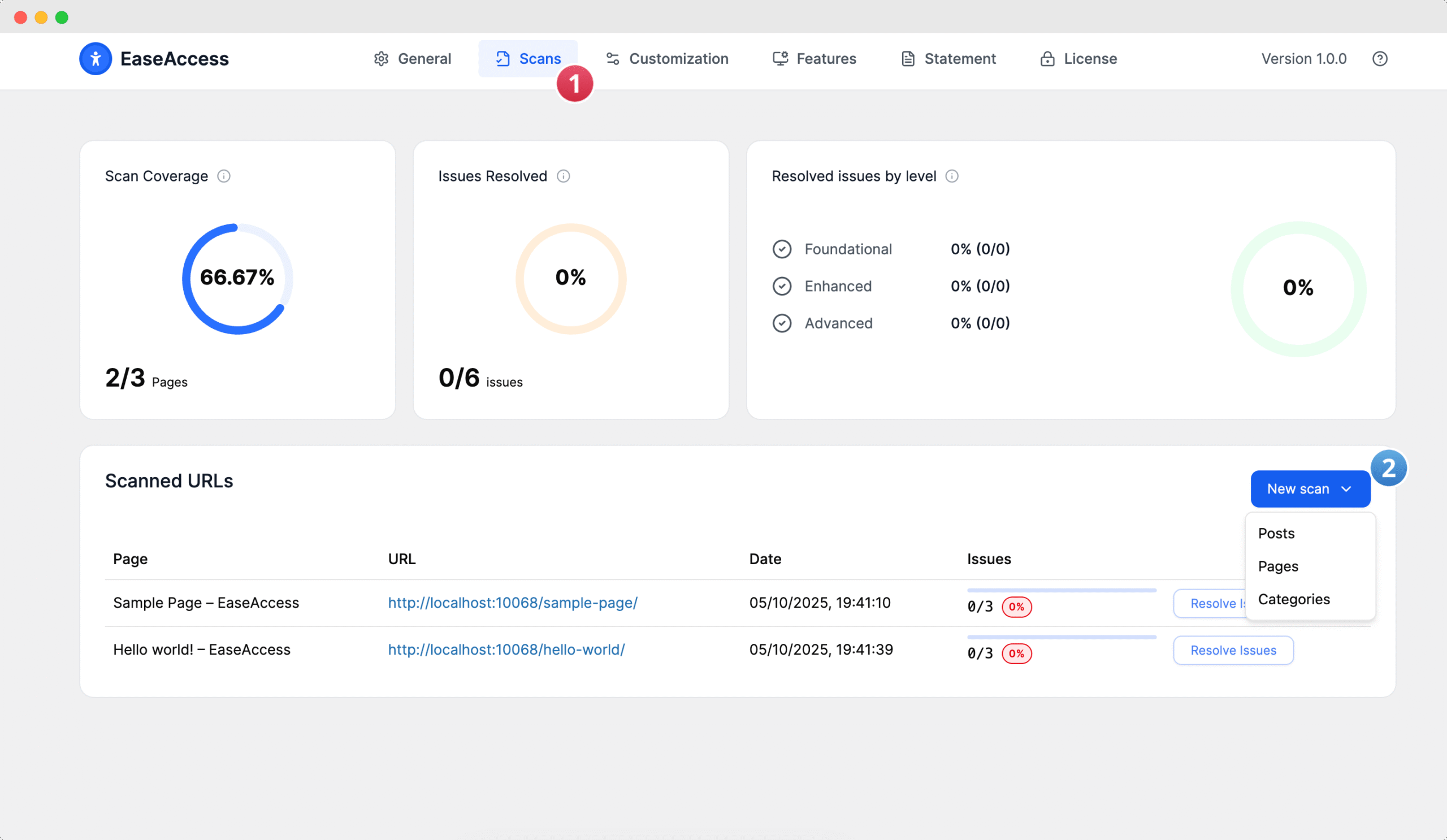
At the top of the page, you will find a dashboard with three key metrics that provide an at-a-glance overview of your site's accessibility health:
Scan Coverage: This metric shows you what percentage of your website's pages have been scanned by EaseAccess. A higher percentage means you have a more complete picture of your site's compliance.
Issues Resolved: This tracks your progress in fixing the problems that the scanner has identified. It displays a ratio of resolved issues to the total number of issues found.
Resolved issues by level: This breaks down your resolved issues into three levels of severity, which correspond to different levels of WCAG conformance:
Foundational: These are the most critical issues that can create significant barriers for users with disabilities (often corresponding to WCAG Level A).
Enhanced: These are intermediate-level issues that address common accessibility problems (often corresponding to WCAG Level AA).
Advanced: These issues relate to the highest standards of accessibility, providing a more inclusive experience for all users (often corresponding to WCAG Level AAA).
How to Start a Scan
You have two convenient ways to scan your site:
1. Site-Wide Scan: From the Scans tab, click the New scan button located at the top right. This will queue a scan for your entire site.
2. Single Page Scan: Navigate to your WordPress dashboard's Pages > All Pages (or Posts > All Posts) list. In the new "Accessibility" column, click the Scan now button for any specific page to scan it individually.
Managing Scanned URLs
Below the dashboard, you will find the Scanned URLs table. This is your command center for taking action on the scan results.
The table lists every page that has been scanned, along with its URL, the Date of the scan, and the number of Issues found.
The Issues column shows your progress for that specific page (e.g., 0/3 issues resolved).
To begin fixing problems, click the Resolve Issues button next to any URL. This will take you to a detailed report outlining each specific issue on that page and providing guidance on how to fix it.This action opens the Accessibility Assistant pop-up, your primary tool for fixing problems.
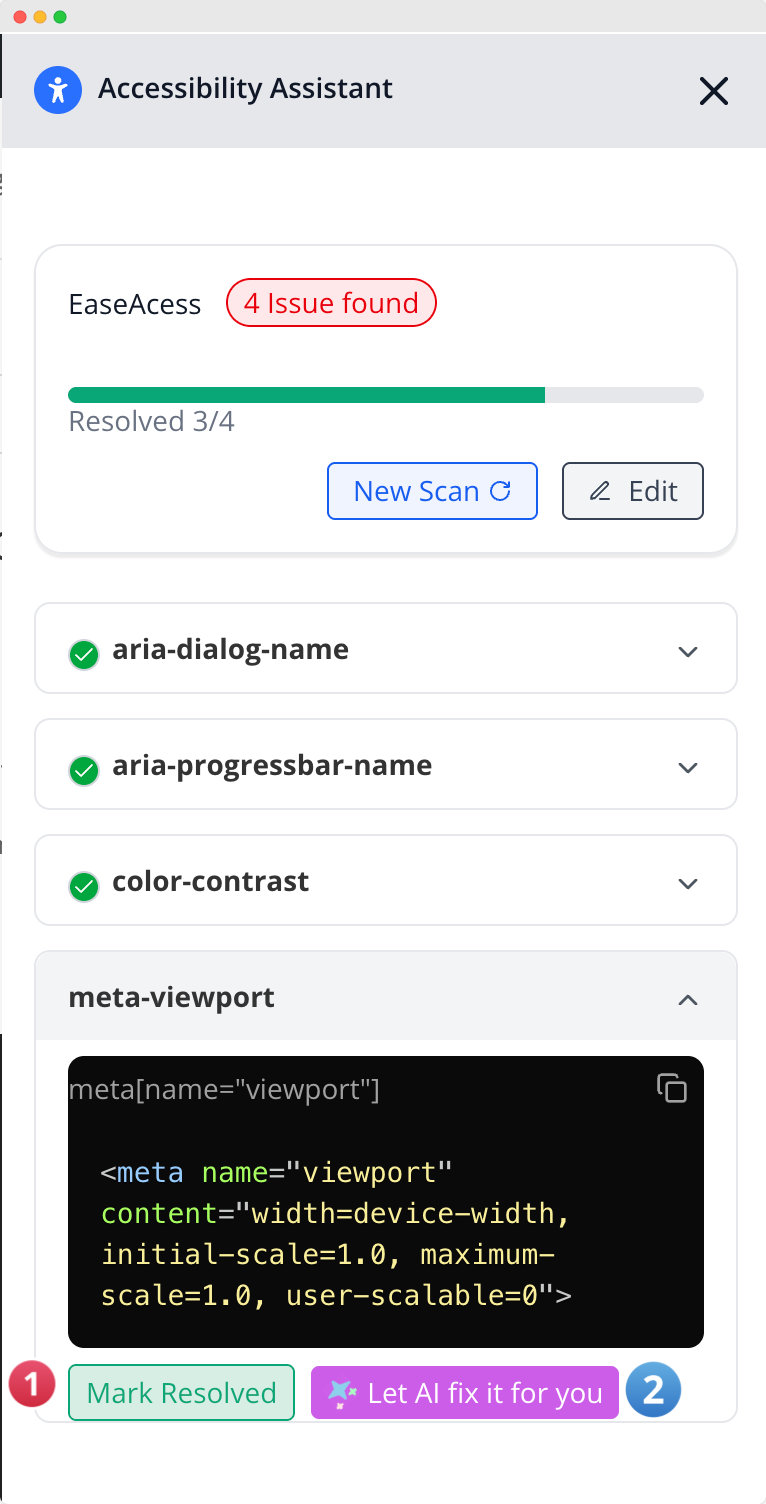
Using the Accessibility Assistant:
- Review Issues: The assistant displays a list of all issues found (e.g., aria-dialog-name, meta-viewport).
- Inspect: Click an issue to expand it. You will see a description and the exact problematic code snippet.
- Resolve Manually: If you fix the issue yourself (e.g., in your theme or page builder), you can click Mark Resolved to update your score.
- Resolve with AI: For a faster, automated solution, click the purple "✨ Let AI fix it for you" button. The AI will analyze the problem and apply the necessary code fix automatically.
Setting Up the AI Assistant
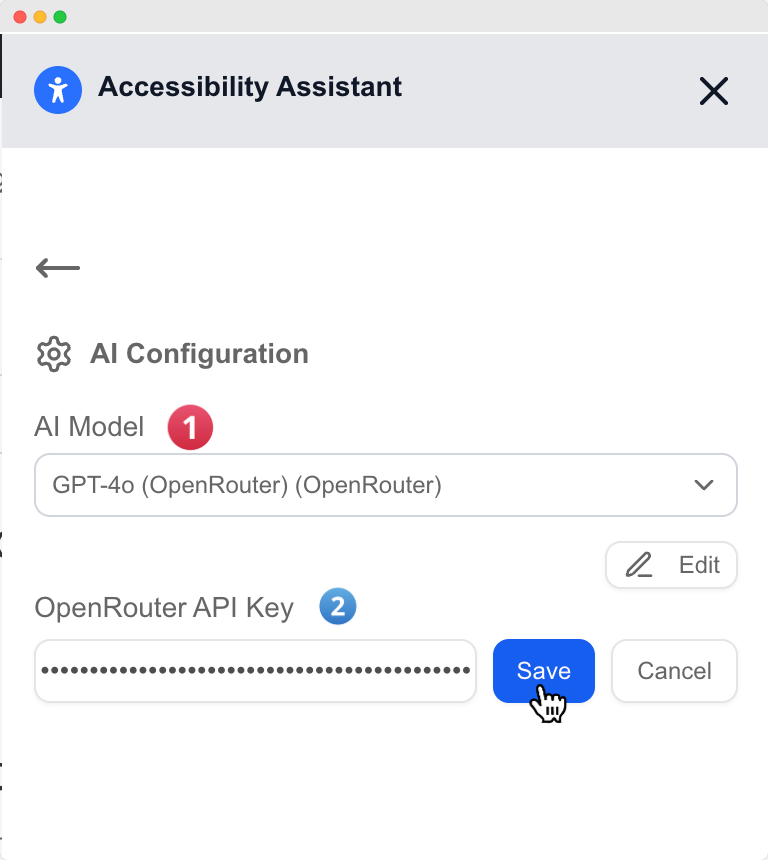
To enable the "✨ Let AI fix it for you" feature, you must first connect your AI provider.
- From the Accessibility Assistant pop-up, click the Add Secret Key button.
- This will open the AI Configuration screen.
- Select your desired AI Model (For Now Select e.g., GPT-4o Mini (OpenRouter)).
- Enter your OpenAI API Key into the field. If you don't have the secret key, please create an account in the OpenRouter by clicking here. Please copy the Secret key and paste it into the Secret key option.
- Click Save.
Once your API key is saved, the "✨ Let AI fix it for you" button will be active and ready to help you resolve accessibility issues with a single click.
ℹ️ Pro Tip: It's a good practice to run a new scan whenever you add significant new content or make major changes to your site's design to ensure ongoing compliance.